# Cross-Chain Transfer
This article demonstrates how to withdraw tokens from Demex to other chains, using Carbon ($SWTH) as an example.
## **Withdraw $SWTH**
**Step 1**: Navigate to the [Demex website](https://app.dem.exchange/) and select '[Balance](https://app.dem.exchange/account/balance)' from the menu located on the right-hand side.
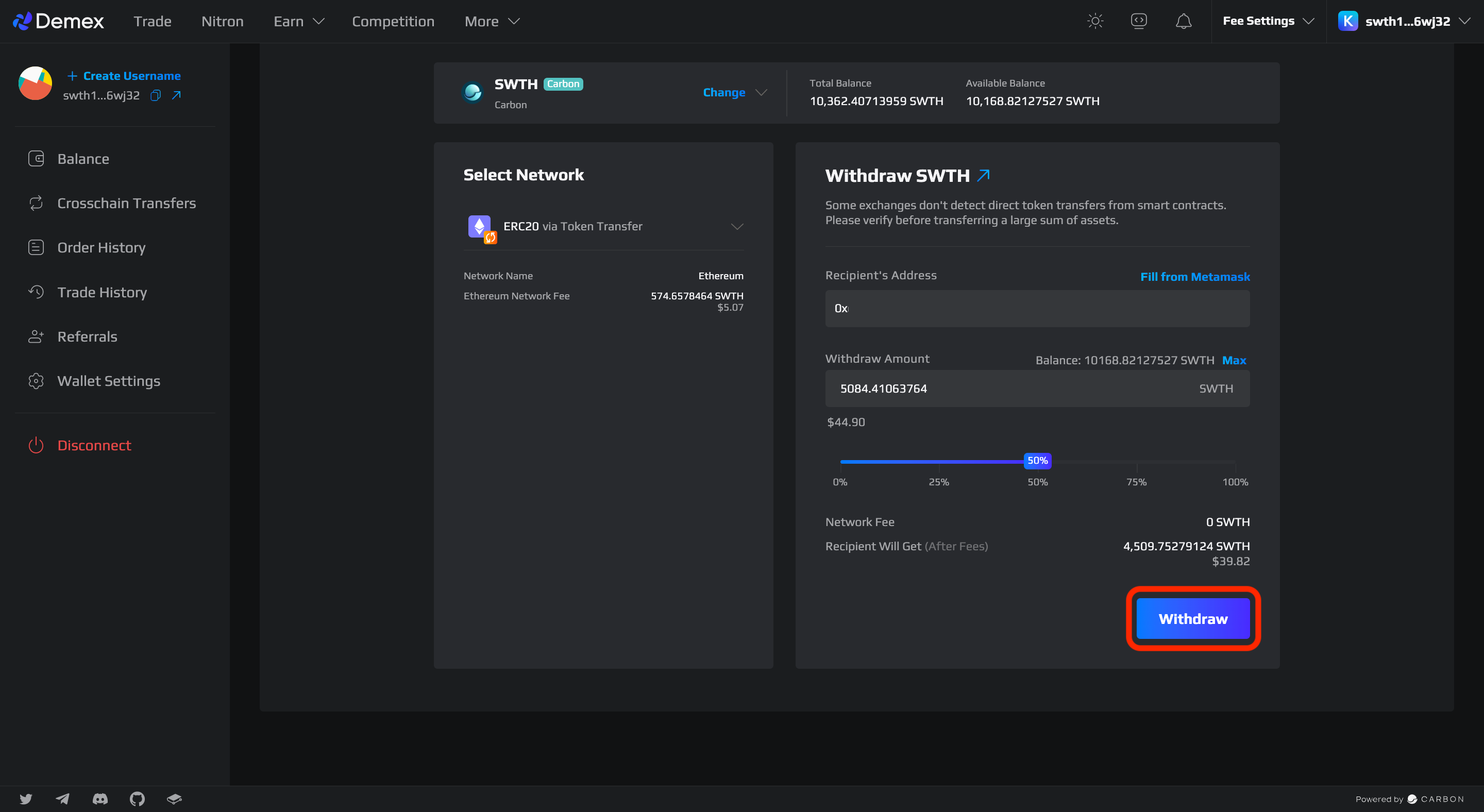
**Step 2**: Using SWTH as an example, select 'Withdraw' to withdraw SWTH on Demex.
**Step 3**: Select a network for withdrawal.
{% hint style="warning" %}
**Tokens are at risk of being lost should the wrong network be selected.**
It is important to select the appropriate network while depositing or withdrawing tokens to prevent the possibility of losing them. To avoid any potential risks, make sure to choose the correct network.
{% endhint %}
{% hint style="info" %}
For more information on Network Selection, click [here](https://guide.dem.exchange/~/changes/REiUq5w3vfdfOKEL0jdy/welcome/network-selection).
{% endhint %}
**Step 4**: Enter the recipient's address accordingly. To withdraw the amount you want, you can either enter the specific amount manually or adjust it using the toggle between 0% and 100%. After that, you can click the 'Withdraw' button.
**Step 5**: Verify and authorize the transaction that appears on the pop-up window.
**Step 6:** To track the status of your transaction after withdrawing your tokens, click on your wallet address in the top left corner and go to the 'Transactions' section on Carbonscan. If the withdrawal is successful, the withdrawal status will be shown as 'Success'.
{% hint style="success" %}
Congratulations, you have successfully withdrawn your tokens!
{% endhint %}