# Import Legacy Account 🆕

The following instructions illustrate how to import your Demex Legacy account onto Leap.

Learn more the Legacy integration for MetaMask [here](https://guide.dem.exchange/~/changes/REiUq5w3vfdfOKEL0jdy/welcome/getting-started/wallet-connection/metamask).

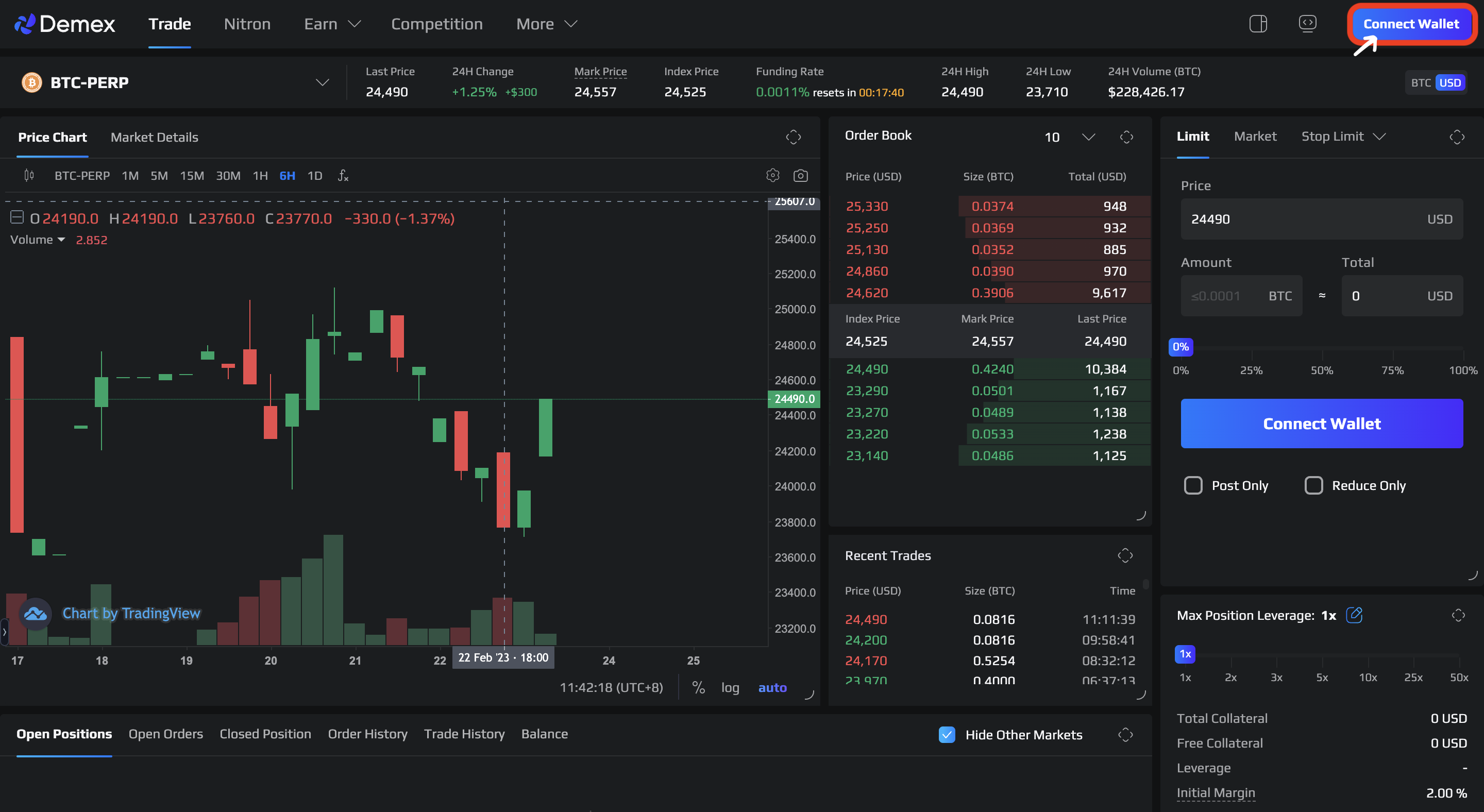
**Step 1**: Navigate to the [Demex website](https://app.dem.exchange/) and click on the 'Connect Wallet' button located at the far-right corner.

<figure><img src="https://3548599389-files.gitbook.io/~/files/v0/b/gitbook-x-prod.appspot.com/o/spaces%2F-MO-XZjWplLUJPNs07G8%2Fuploads%2FkkT41kdwxa7Bgpw9RhPG%2Fimage.png?alt=media&#x26;token=f0bfbfd2-6323-41c1-a306-4a3e8dba670d" alt=""><figcaption></figcaption></figure>

**Step 2:** Select the 'MetaMask' option located second from the bottom among the available Wallet choices.

<figure><img src="https://3548599389-files.gitbook.io/~/files/v0/b/gitbook-x-prod.appspot.com/o/spaces%2F-MO-XZjWplLUJPNs07G8%2Fuploads%2FczpNSjjW4iiUMZNlNGO1%2Fimage.png?alt=media&#x26;token=e55f940d-7f3c-4bef-8b36-f9674f10de2c" alt=""><figcaption></figcaption></figure>

**Step 3**: Legacy account detected.&#x20;

To initiate the migration process, click on the 'Migrate' button.

**Step 4**: Copy the private key given.

Click next.

**Step 5**: In order to import your account on Leap, you need to go to the Leap browser extension and click on ...

{% hint style="info" %}
Install Leap on Chrome Extension [here](https://chrome.google.com/webstore/detail/leap-cosmos-wallet/fcfcfllfndlomdhbehjjcoimbgofdncg/?utm_source=website\&utm_medium=permanent-website\&utm_campaign=permanent).
{% endhint %}

Then, select 'Import an existing wallet'.

<figure><img src="https://3548599389-files.gitbook.io/~/files/v0/b/gitbook-x-prod.appspot.com/o/spaces%2F-MO-XZjWplLUJPNs07G8%2Fuploads%2FXkxhuloBCHbamHDXlkEr%2FScreenshot%202023-05-16%20at%2012.53.59%20PM.png?alt=media&#x26;token=d9abd08f-ae0c-4ab5-a042-049e1393e9c9" alt=""><figcaption></figcaption></figure>

**Step 6**: Paste the private key that you copied in Step 4 into the space provided.

<figure><img src="https://3548599389-files.gitbook.io/~/files/v0/b/gitbook-x-prod.appspot.com/o/spaces%2F-MO-XZjWplLUJPNs07G8%2Fuploads%2FLsDBpiqEh5nMWGqPdLdd%2FScreenshot%202023-05-16%20at%2012.54.06%20PM.png?alt=media&#x26;token=49542ec8-07a1-419f-be70-aa032ad2a4d4" alt=""><figcaption></figcaption></figure>

Click on 'Import wallet'.

**Step 7**: MetaMask Account im\`\`ported.

<figure><img src="https://3548599389-files.gitbook.io/~/files/v0/b/gitbook-x-prod.appspot.com/o/spaces%2F-MO-XZjWplLUJPNs07G8%2Fuploads%2FvBIgo3ffWlv7qiwkTqSj%2FScreenshot%202023-02-23%20at%205.37.38%20PM.png?alt=media&#x26;token=62ce20a3-2ebc-439b-b41c-9d11a714f548" alt=""><figcaption></figcaption></figure>

{% hint style="success" %}
Well done, you have successfully imported your MetaMask account on Leap!
{% endhint %}