# Cross-Chain Transfer
This article demonstrates how to deposit tokens from other networks onto Demex, using Carbon ($SWTH) as an example.
## **Deposit $SWTH**
**Step 1**: Navigate to the [Demex website](https://app.dem.exchange/) and select '[Balance](https://app.dem.exchange/account/balance)' from the menu located on the right-hand side.
**Step 2**: Click 'Deposit' to deposit $SWTH on Demex.
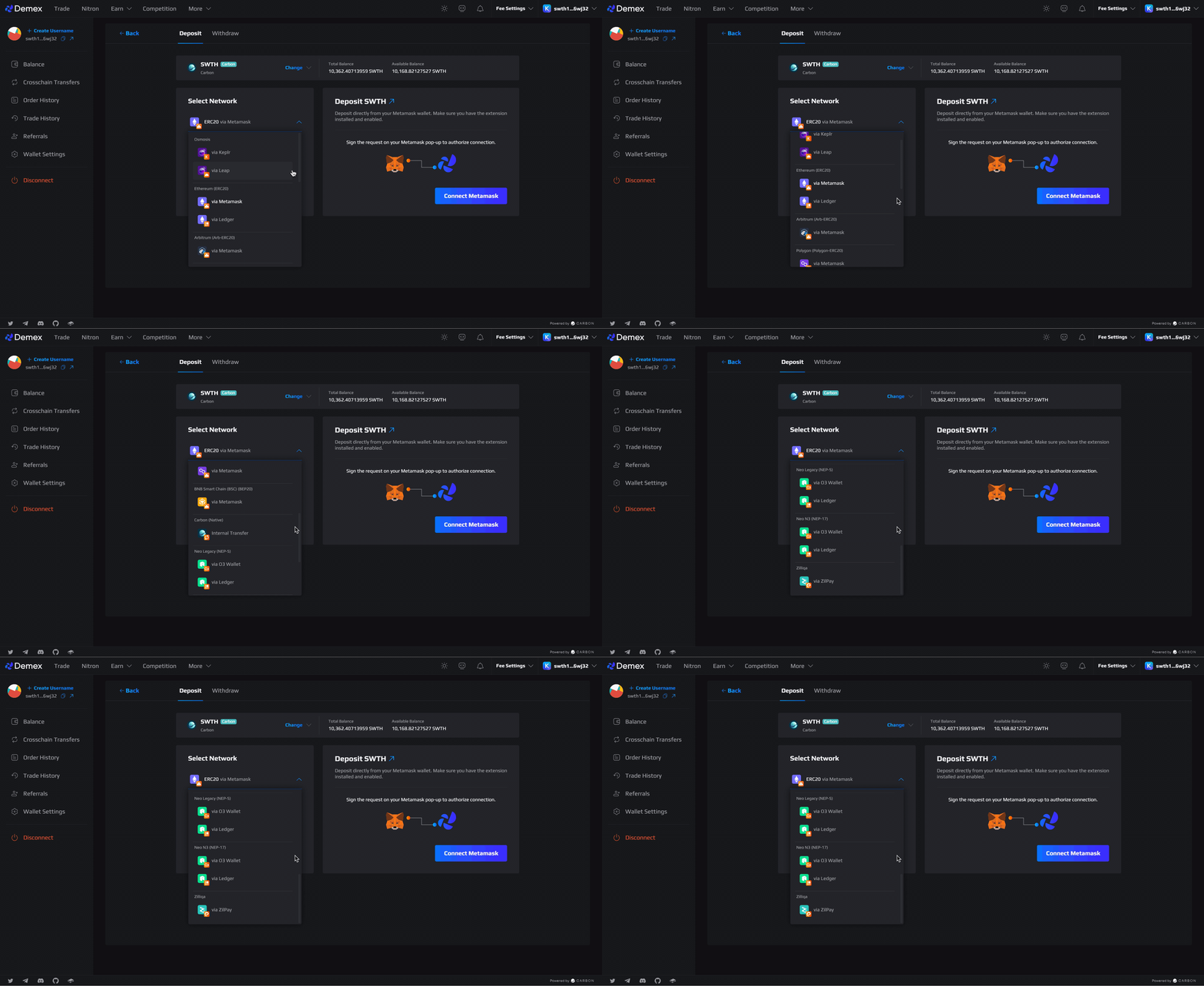
**Step 3**: Choose a network to deposit from.
{% hint style="warning" %}
**Tokens are at risk of being lost should the wrong network be selected.**
It is important to select the appropriate network while depositing or withdrawing tokens to prevent the possibility of losing them. To avoid any potential risks, make sure to choose the correct network.
{% endhint %}
As $SWTH is a multi-chain token, users can deposit $SWTH from a myriad of networks:
{% hint style="info" %}
For more information on Network Selection, click [here](https://guide.dem.exchange/~/changes/REiUq5w3vfdfOKEL0jdy/welcome/network-selection).
{% endhint %}
**Step 4**: Connect your wallet.
{% hint style="info" %}
For the user guide on how to connect your wallet, click [here](https://guide.dem.exchange/~/changes/REiUq5w3vfdfOKEL0jdy/welcome/getting-started/wallet-connection).
{% endhint %}
**Step 5**: To deposit the amount you want, you can either enter the specific amount manually or adjust it using the toggle between 0% and 100%. After that, you can click the 'Deposit' button.
**Step 6**: Verify and authorize the transaction that appears on the pop-up window.
**Step 7:** To track the status of your transaction after depositing your tokens, click on your wallet address in the top left corner and go to the 'Transactions' section on [Carbonscan](https://scan.carbon.network/). If the deposit is successful, the deposit status will be shown as 'Success'.
{% hint style="success" %}
Congratulations, you have successfully deposited!
{% endhint %}